Navigating Your Gallery & The Shop
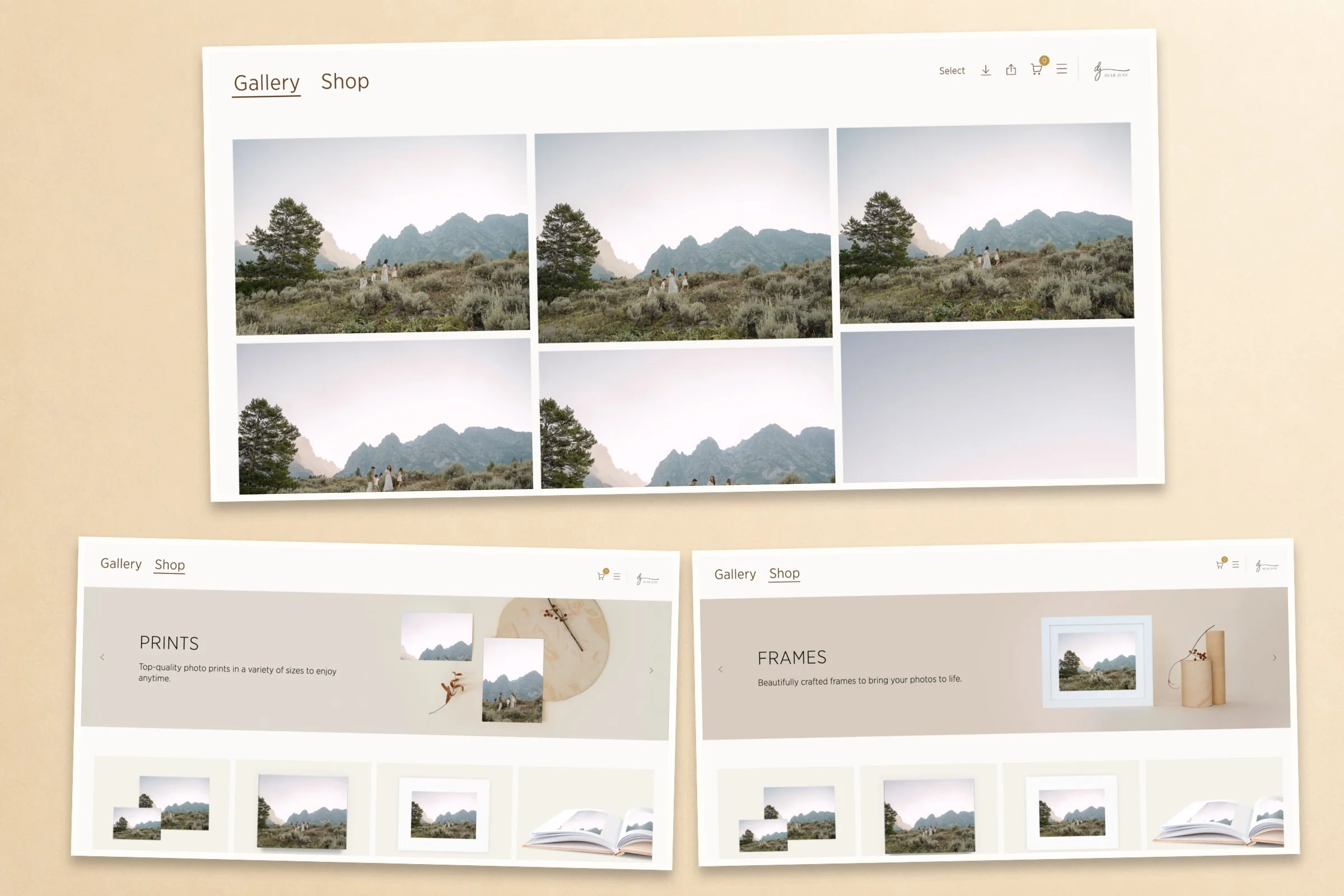
How to Download Your Images & Order Prints
Your gallery makes it easy to download your included images, save individual favorites to your phone, and order professional prints and products. Before you begin, there are a few important things to know about the files included with your collection.
What Files Are Included With Your Collection?
Every collection includes web-size downloads of either selected images or the full gallery, depending on the collection you purchased.
Web-size images are made for saving to your phone, sharing with family, emailing, and posting online. They are not intended for printing.
Your collection may or may not include high-resolution images. High-resolution files are the full-size files used for printing.
If high-resolution images were included in your collection or you purchased the high-resolution upgrade when booking, they will already be available to download. Simply follow the instructions below.
If your collection does not include high-resolution files, you have two options:
Order professional prints and products directly through your gallery. This is the option I recommend for the best color, quality, and longevity. The store automatically uses the original high-resolution files to produce your order, so you do not need to purchase the files separately before ordering prints.
Purchase the high-resolution files through the gallery Shop. High-resolution file purchases include a personal print release, allowing you to download and print the purchased images through the lab of your choice.
The download options displayed inside your gallery are based on the collection and upgrades you purchased.
The Best Way to Save Your Gallery
I strongly recommend downloading all of the images included with your collection to a computer rather than trying to store the entire gallery on your phone.
A computer download is more reliable, keeps the complete gallery together in one clearly labeled folder, and makes it much easier to create an additional backup. Phones are wonderful for keeping a few favorites close, but full galleries tend to get buried, accidentally deleted, or lost during a phone change.
Once your gallery has been downloaded, keep the complete folder on your computer and save a second copy to cloud storage or an external drive.
Use the mobile instructions below when you want to save an individual image to your phone for sharing online.
Downloading all images on desktop:
Download Full Gallery:
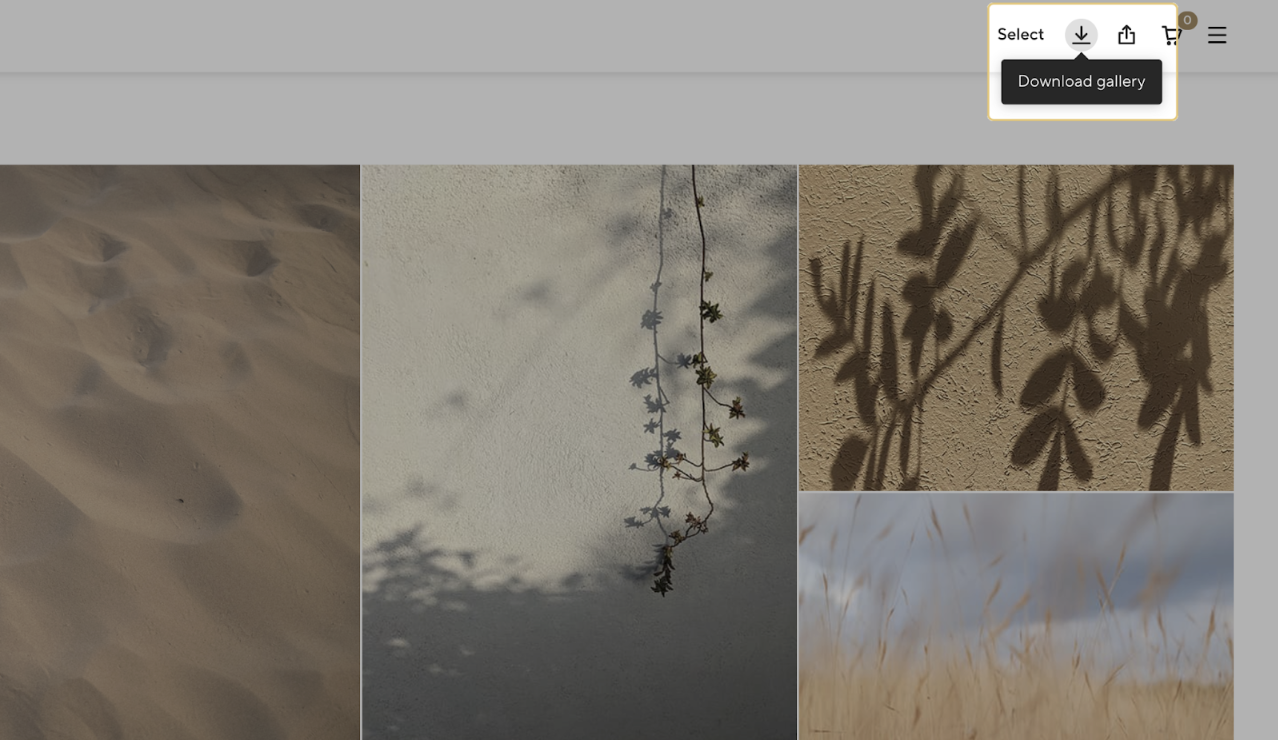
1. To begin downloading all of the media in the gallery click the download icon on the right-hand side of the navigation bar.
2. Choose your file size
Select your preferred resolution from the available options.
If your collection includes high-resolution files, you will see that option here. Otherwise, select the web-size download included with your collection.
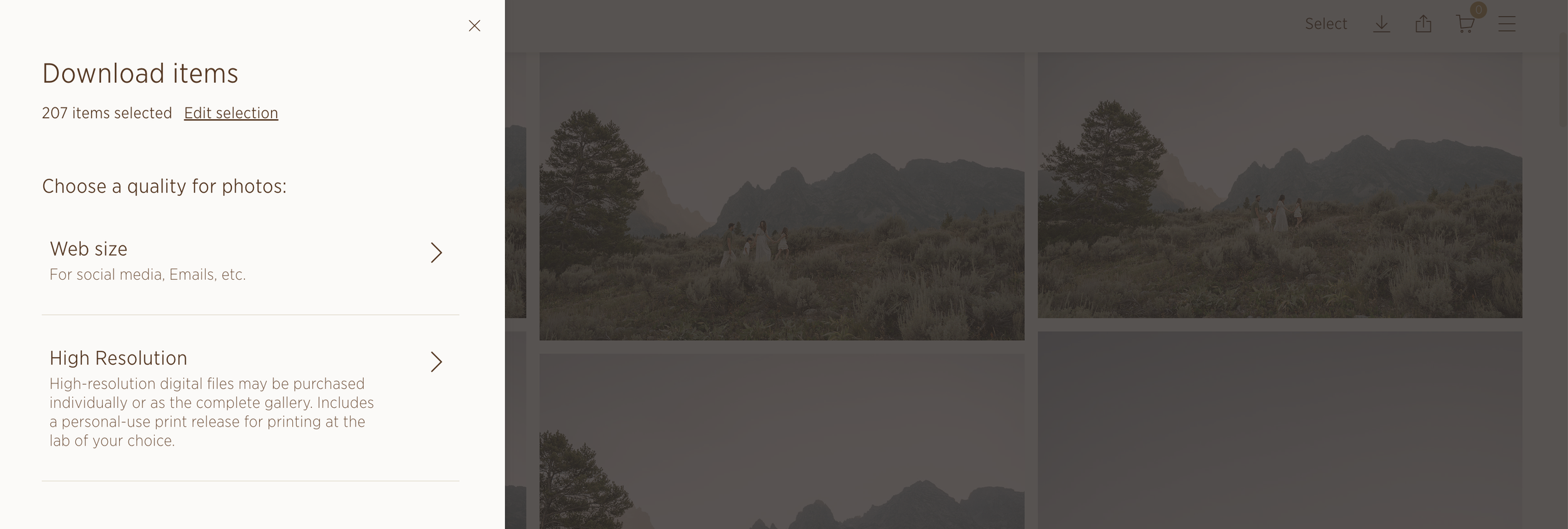
3. Review your selection.
Click Edit Selection if you would like to add or remove images. Otherwise, click Next to continue.
4. Download and save the files.
Choose whether to download the gallery directly to your computer or save it to Dropbox or Google Photos.
A direct computer download will usually arrive as a zipped folder. Once the download is complete, double-click the zipped folder to open or extract the images. Move the finished folder somewhere easy to find and rename it with your family name and session year. If the gallery is large, it may take a few minutes for the files to be prepared. You may receive an email when the download is ready.
Downloading images on mobile:
Saving an Individual Image on Your Phone
Mobile downloads are best for saving one or two favorite images that you would like to share online.
1. Open the image.
Tap the individual image you would like to save so it opens full-screen.
2. Tap the download icon.
Tap the download icon in the menu at the bottom of the screen.
3. Choose the available resolution.
Select your preferred resolution from the options available with your collection.
4. Save the image.
Choose to download the image directly to your device. An individual photo should appear in your phone’s Photos app.
Repeat these steps for any additional images you would like to keep on your phone.
How to Order Prints and Products
The Shop inside your gallery is a complete, self-service store. You do not need to email Dear June with a list of what you would like to order. You will select your images, customize your products, enter your shipping information, and complete order directly through the gallery.
Your order will then be sent to the professional lab for production and shipped to the address you provide.
1. Open the Shop.
Click or tap Shop in your gallery’s navigation menu.
2. Choose a product.
Select the print, frame, album, or other product you would like to order.
3. Select your image and customize the product.
Choose the image you would like to use, then select the size, quantity, paper, frame, or other available options.
Carefully review the crop shown in the product preview. You can adjust the crop before adding the item to your cart.
4. Add the product to your cart.
Once everything looks correct, click Add to Cart. You can continue shopping or open your cart to complete the order.
5. Complete checkout.
Review your products, enter your billing and shipping information, and submit payment directly through the gallery.
You will receive an order confirmation after checkout and tracking information once it becomes available.
Purchasing High-Resolution Files
If high-resolution files were not included in your original collection, you can purchase them through the gallery Shop: If high resolution files WERE included in your collection, DO NOT purchase them again from the shop. Simply download as shown in the instructions: “Downloading all images on desktop”
Open the Shop.
Select Digital Download.
Choose the high-resolution option available for your session.
Select the applicable images or full gallery.
Add the files to your cart and complete checkout.
After purchase, follow the provided download instructions to save the files to your computer. Your purchase will also include a personal print release.
Please remember that purchasing high-resolution files does not include physical prints. Likewise, you do not need to purchase high-resolution downloads before ordering professional prints through your gallery. The Shop automatically uses the original files to produce all print orders.